Subscribe to our Newsletter


WeShip United States

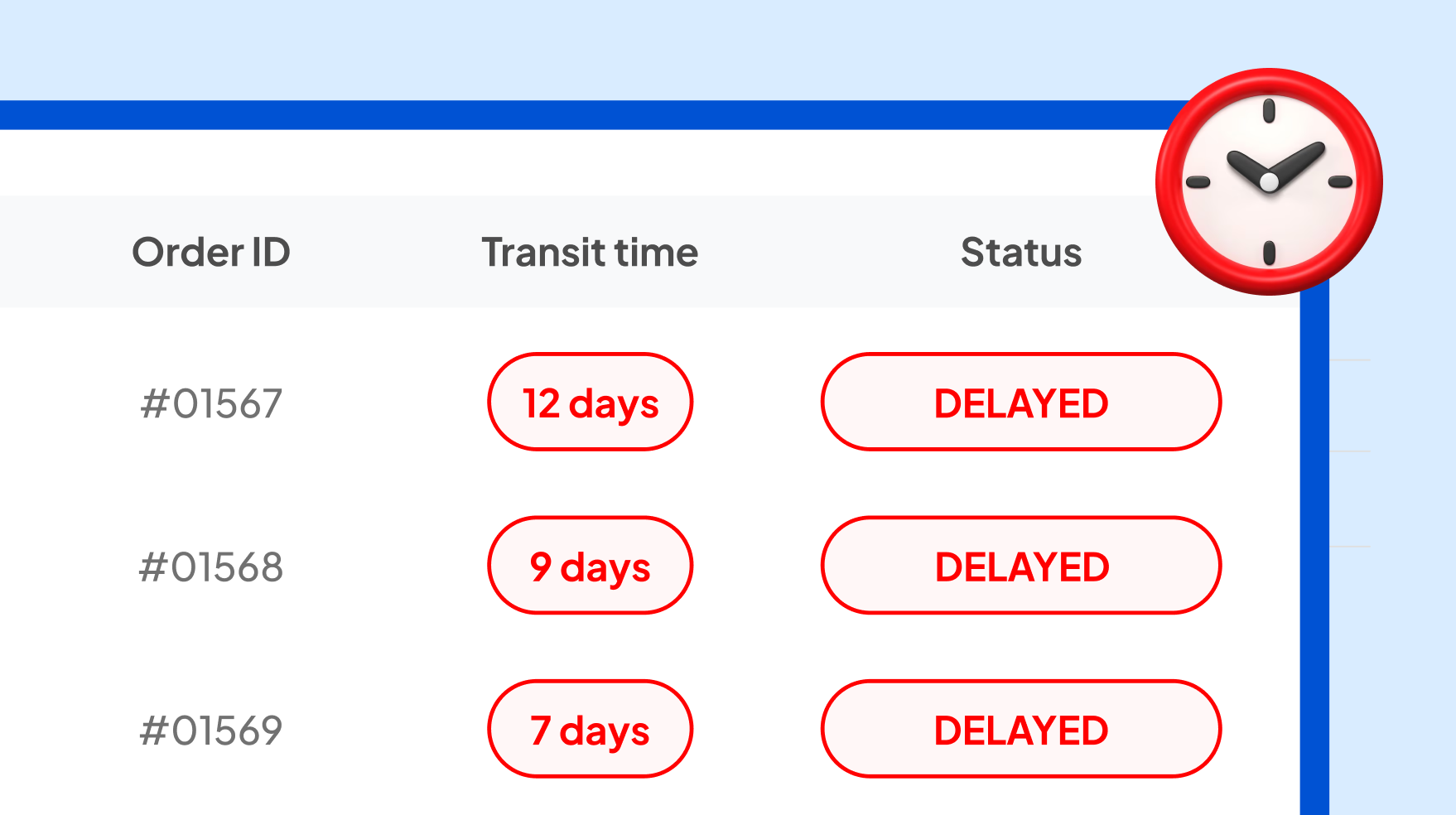



1. Go to the side menu and click on the “Shipments” tab. A sub-menu will appear—click on the option labeled “History”

2. On the Shipments screen, locate the “Filters” button and click on it.

3. A side bar with multiple filters will appear. Look for the “Status” filter and click on it—a list of statuses will drop down. If you only want to view delayed shipments, find the “Delayed” option and click on “See Only”

4. This will automatically deselect the other options in the list, leaving only the “Delayed” option selected. Now just click on the “Apply” button.

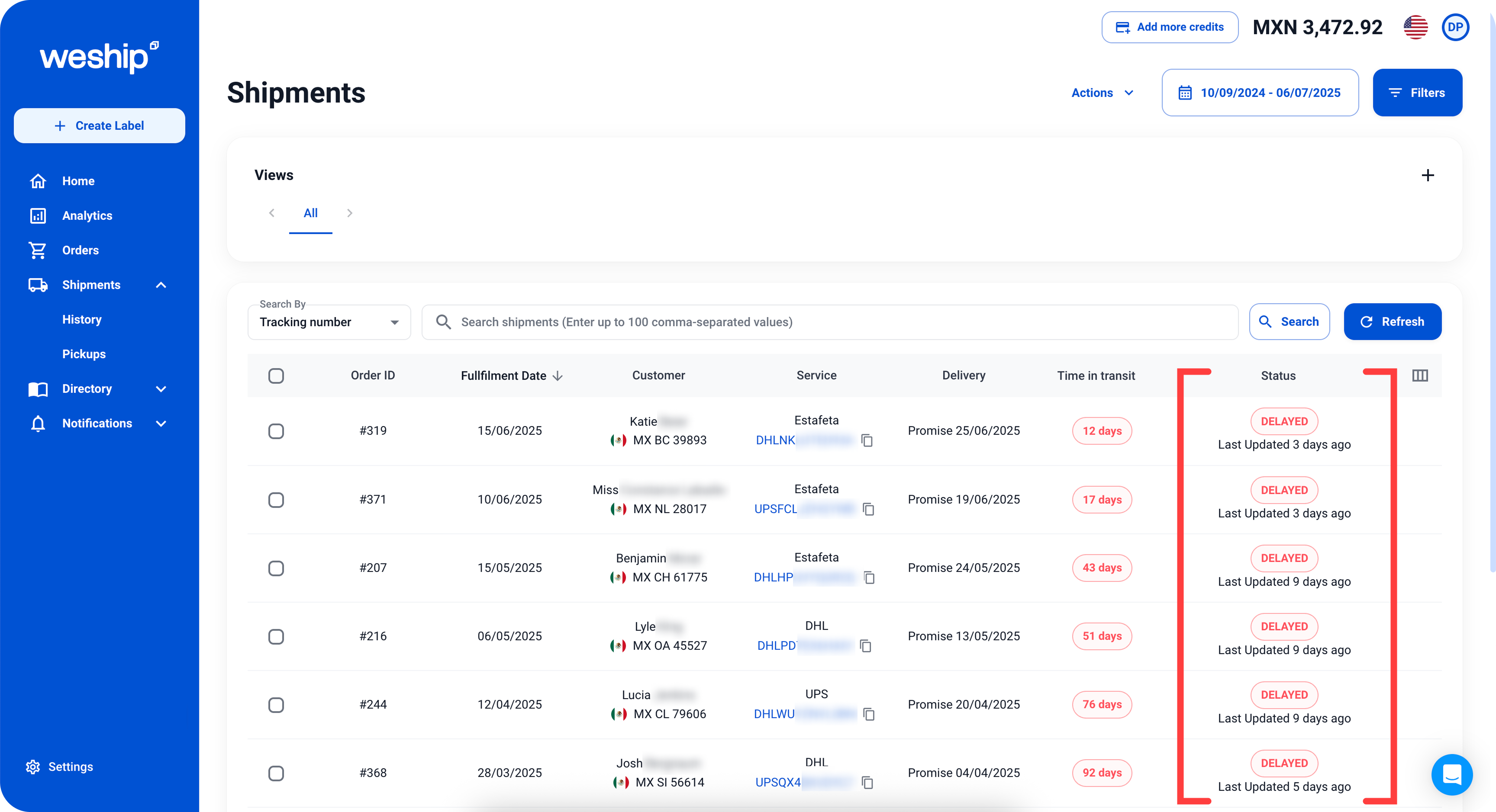
You will now see the shipment table filtered to show only delayed shipments.
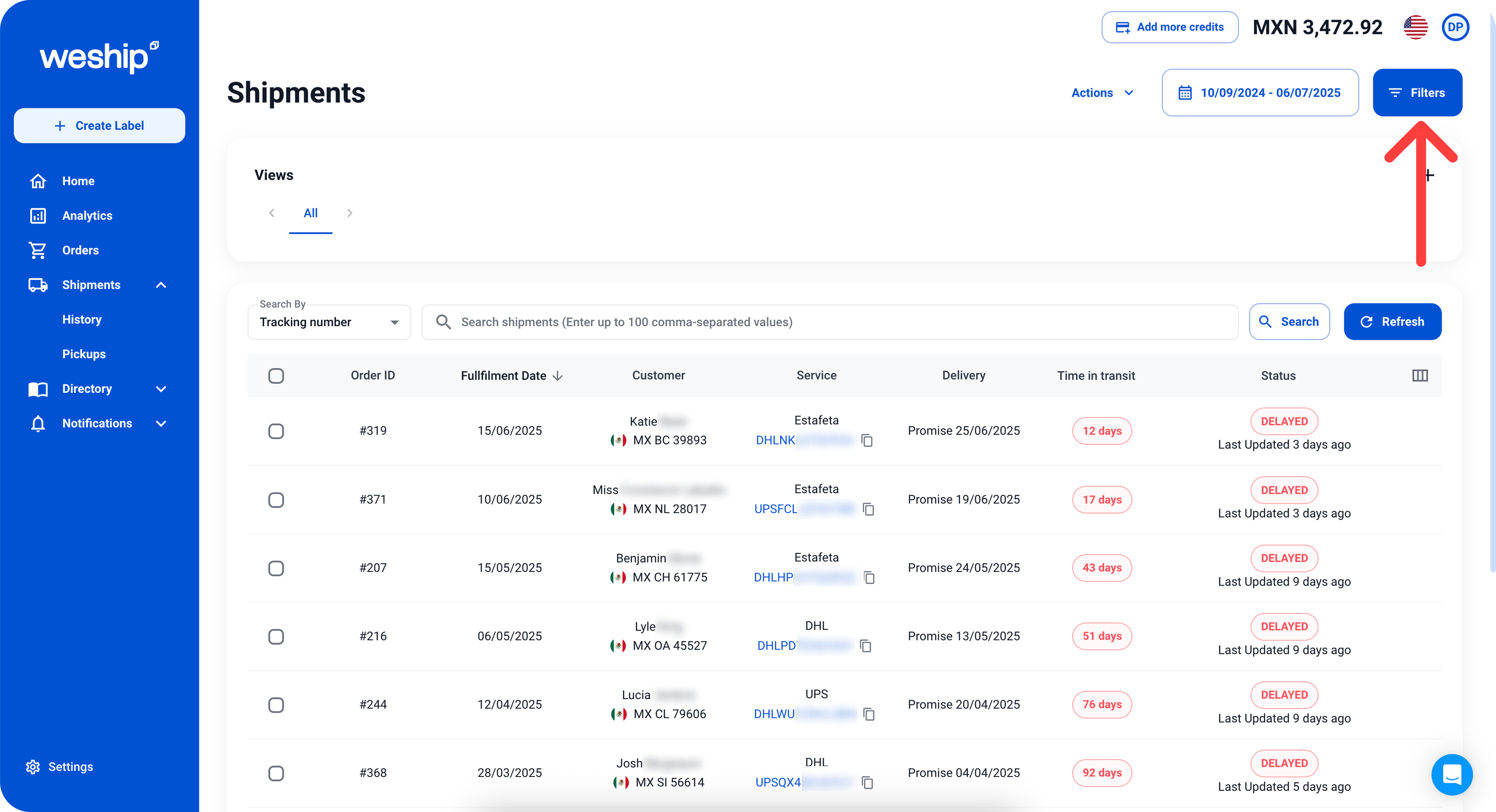
1. Click the “Filters” button again.
2. 2. In the side bar, scroll to the bottom and click the “Reset Filters” button.
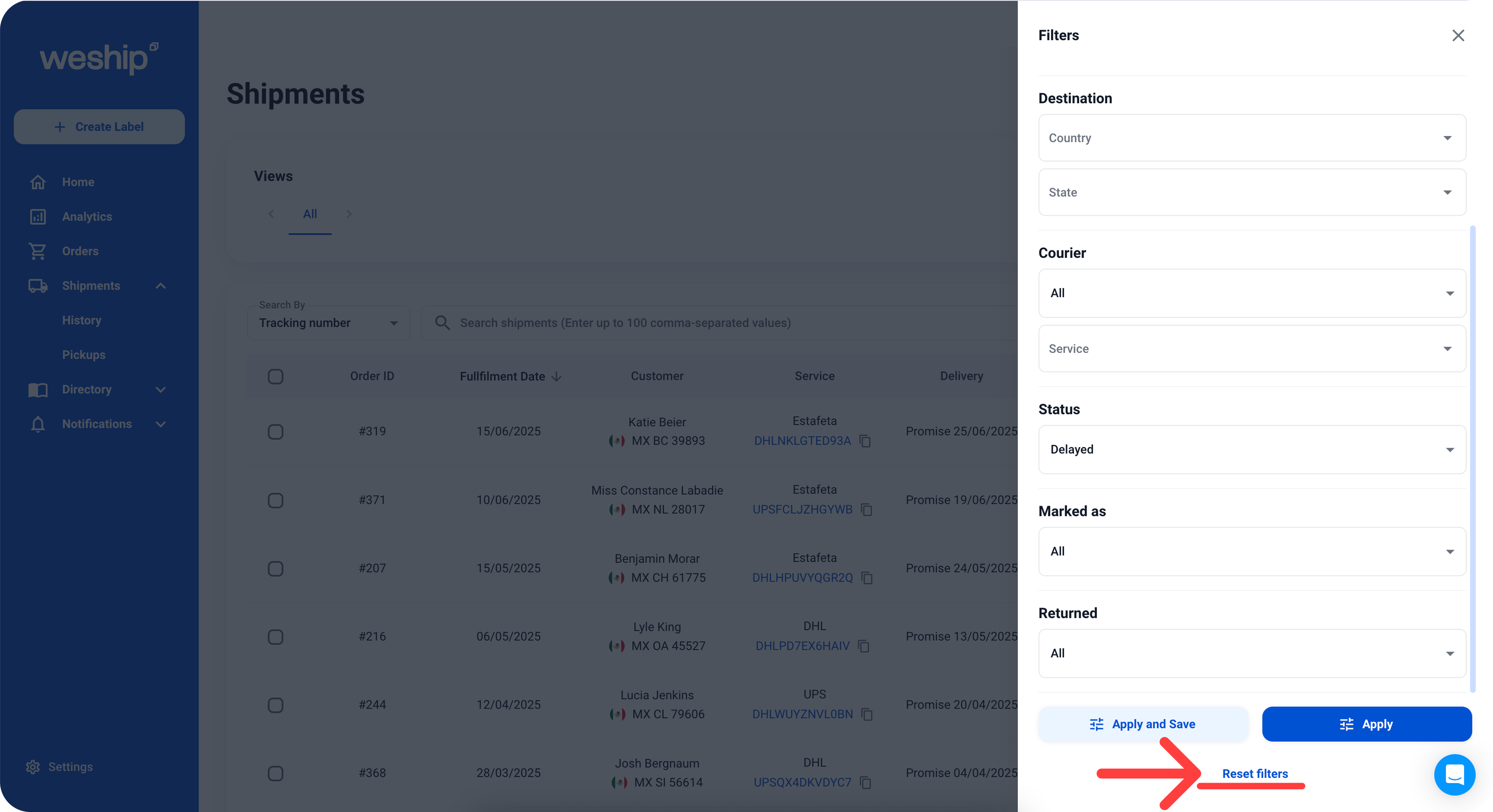
3. The shipments table will now return to its original state, displaying all data without any filters.